Workspace settings
For administrators 5 min read
Your workspace's settings, by section: general, identity and sign-in, lifecycle policies, Ask ELOS and AI, data and privacy, plan and usage.
Before you begin
- The Manage settings permission.
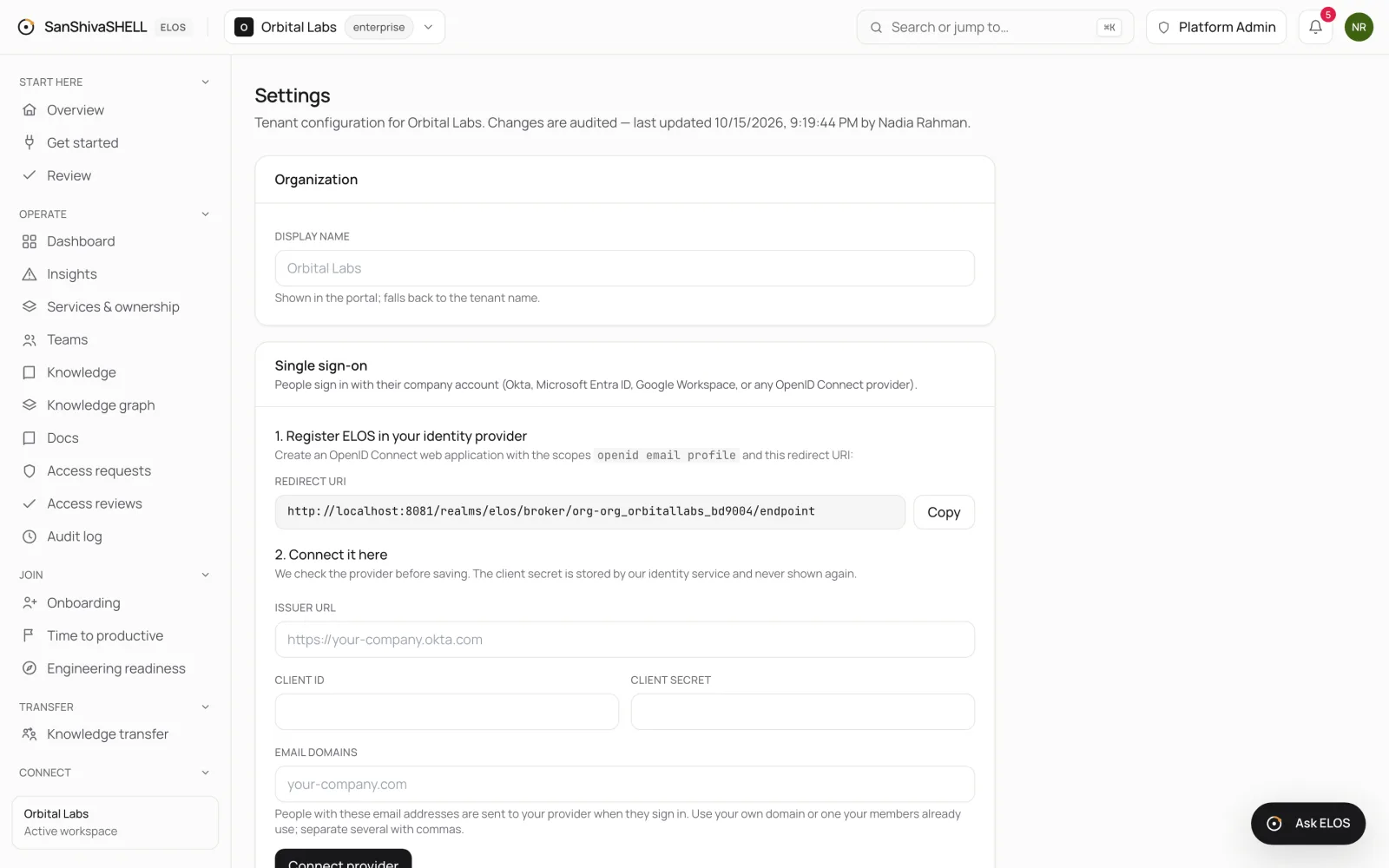
Settings holds your workspace configuration, one section per topic. Choose a section from the list beside the page, or from Section at the top on a phone. Every change is recorded in the audit log. Choose Save settings in a section after making changes there.
General
Display name is the name shown in the portal. It falls back to your workspace name.
Identity & sign-in
Connect your company's identity provider for single sign-on, and create the tokens your provider uses for directory sync (SCIM). See Connect your tools.
Email domains let colleagues join without an invitation. Add your company's domain, add the TXT record shown at your DNS provider, and choose Verify. A domain can belong to one workspace only. Once it's verified, choose what happens when someone with that domain asks to join on the join page: nothing, a sign-in link as Engineer, or a request an admin approves under Members. If the TXT record is removed later, the domain stops being verified and joining turns off.
Lifecycle policies
Default access grant TTL (days) applies when an approver grants access without choosing a duration. Every grant expires and is revoked automatically.
Notifications
Send this workspace's notifications to your own Slack channel (an incoming webhook URL), a webhook of your own (a JSON post over https) or a team mailbox. Choose what each channel receives: Access (requests, approval steps, SLA breaches and decisions) or Admin (workspace deletion, join requests, email domains, plan limits). A webhook URL is stored as a secret and isn't shown again. Send test checks a channel; each channel shows when it last delivered and any error. In-app notifications, and the emails to people who can act, keep working as they are.
Ask ELOS & AI
- Ask ELOS conversations: whether to keep conversation history, and for how many days after the last message.
- Long-term memory: whether Ask ELOS may remember facts people ask it to.
- Ask ELOS data access: which kinds of organization data the assistant may use to answer, for everyone in the workspace.
Data & privacy
- Data retention (days): how long workspace data is kept. Older records are purged automatically; the audit log is never purged.
- Compliance scope: the frameworks your workspace is in scope for, which decide the evidence access reviews collect.
Plan & usage
Your workspace's plan, how many people and connected tools it has against the plan's limits (at a limit, ELOS refuses new people, whether they join, are invited, sync from your identity provider or sign in for the first time, and new connected tools), how many services, knowledge items and active access grants it has, and which features the plan includes. A feature your plan doesn't include shows the plan that does. Plans are changed by our team, not in the product. Also here: how much Ask ELOS used its model this month, and whether model-written answers are on or paused because the month's budget is reached (Ask ELOS then answers with the cited extracts from your sources until the 1st, and says so); and minutes of knowledge-transfer recordings transcribed this month, against your allowance.
See AI and your data for how these work together.
What's next
- Retention, export and erasure: How long data is kept, legal hold, exporting your data, and erasing a person's personal data.