Members and access roles
For administrators 4 min read
See everyone in your workspace, filter by team and status, and bind each member to the access role ELOS enforces.
Before you begin
- The Manage people permission to see members.
- The Manage roles permission, which only administrators hold, to change a member's access role.
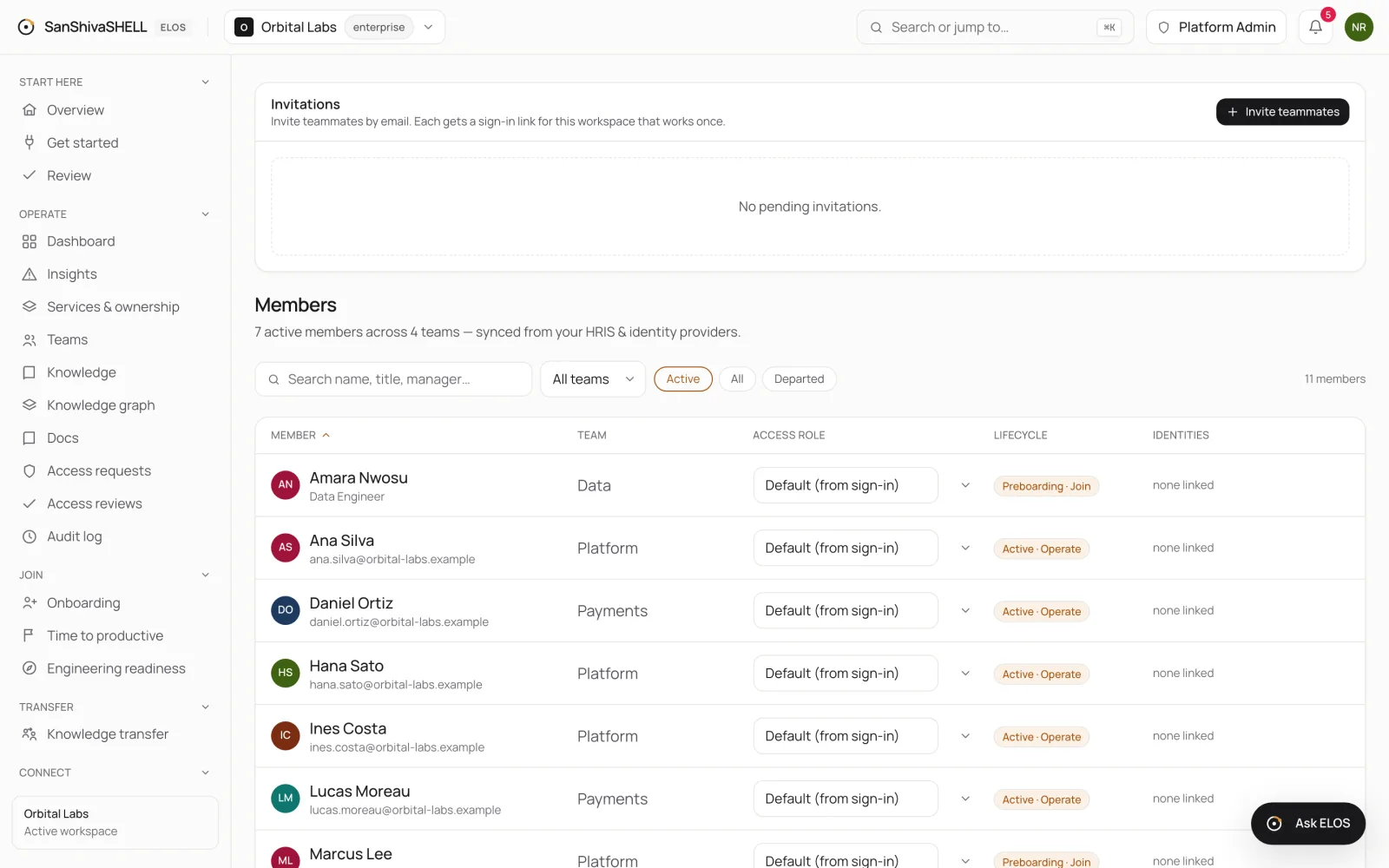
Members lists everyone in your workspace with their team, access role, lifecycle stage and linked identities. Members appear when they first sign in through your identity provider, and joiners you register appear as soon as you add them.
Find a member
- Search by name, title or manager.
- Filter by team with All teams.
- Switch between Active, All and Departed members.
The list is paged, so it stays fast however large your organization is.
Set an access role
- Find the member and open the Access role menu on their row.
- Choose a built-in role or one of your custom roles.
- The change applies immediately and is recorded in the audit log.
Default (from sign-in) uses the role your identity provider asserts when the member signs in. Choosing a role in ELOS overrides it. You can only assign a role whose permissions you hold yourself.
Lifecycle
The Lifecycle column shows each member's stage and pillar, for example Preboarding · Join for someone ELOS is onboarding, or Active · Operate once they're working.
What's next
- Roles, permissions and read scope: Use the built-in roles, tailor them, or compose custom roles from the permission catalog, and limit what a role can see.